Live readings
View LTE and 5G bands, signal readings, download and upload rates, latency and connection status.
LTE AND 5G · WINDOWS
A Windows app for monitoring and controlling supported LTE and 5G routers.
54GUC brings radio readings, traffic graphs and connection history into one window. You can watch the connection, compare antenna positions and use the controls available for your router.
Available readings and controls depend on the exact router model and firmware.
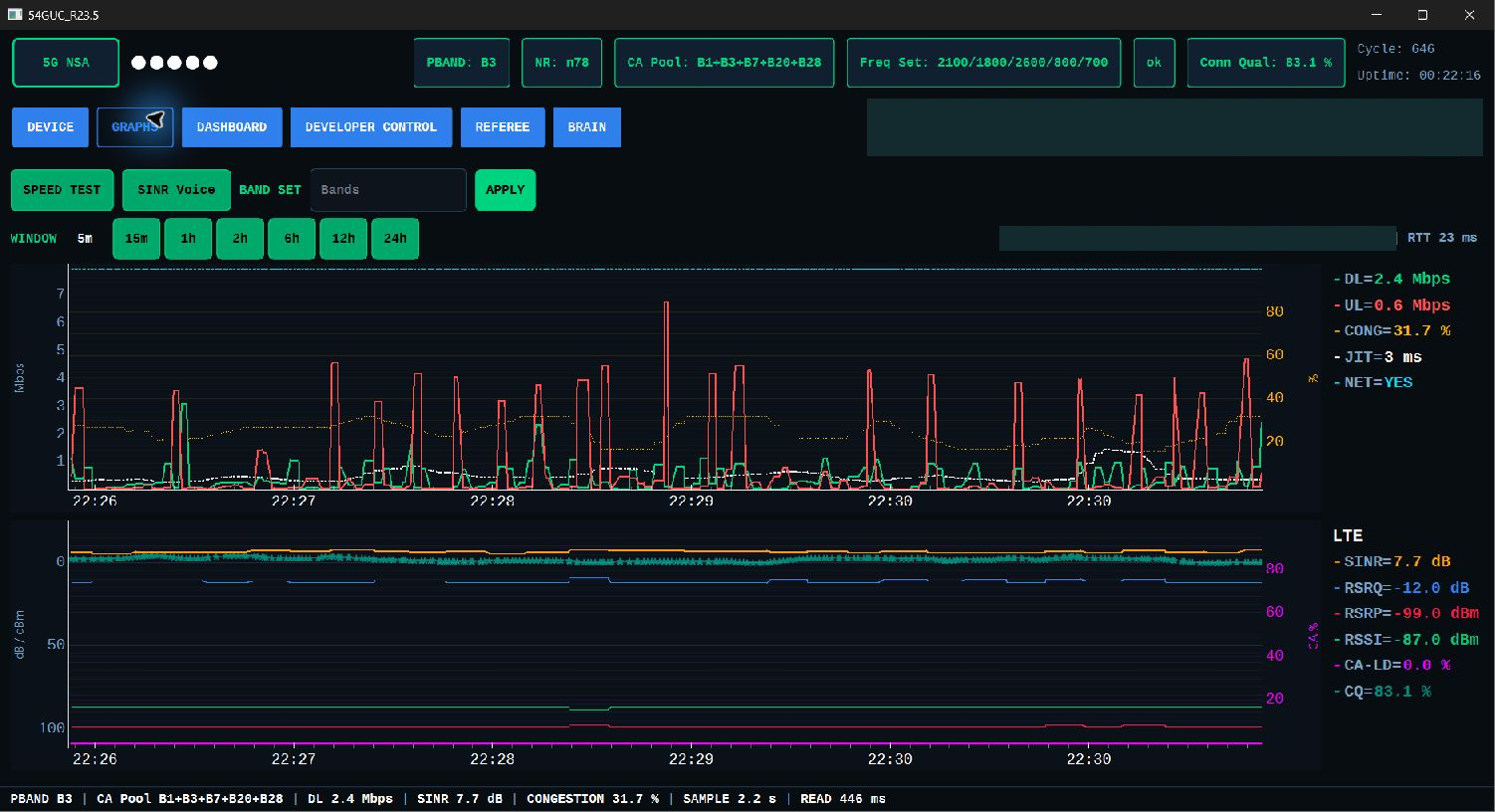
An actual application screen from R23.5. Screens can differ between versions and routers.
View all six pages ↓ABOUT 54GUC
54GUC runs on your PC and connects to a router on your local network. It brings together the information your router provides. It does not replace the router’s firmware.
View LTE and 5G bands, signal readings, download and upload rates, latency and connection status.
Follow readings over time and compare them with earlier conditions. History is kept locally for each router.
Compare antenna positions using the available LTE and 5G measurements. The inputs shown depend on what the router reports.
Select supported bands and use the available manual controls and schedules. The exact model and firmware determine which controls are available.
Brain learns from up to 14 days of your router’s connection History. As it collects more results, it can make better-informed choices about which settings work well for your connection. When enabled, it can automatically adjust the settings your router allows, or leave a good connection unchanged. You can also leave Brain off.
View events and action results. You can also share a session bundle privately to contribute useful information about your router model and firmware.
R25.7 IS OPEN SOURCE
The 54GUC source is available under GNU GPL version 3. You can inspect, build, modify and redistribute the covered software under that licence.
Our most useful contribution right now is testing the current app on routers and firmware with little or no hardware evidence. Report your exact model, firmware, which readings work and what is missing. Those results help us build small, carefully reviewed profiles.
A clear report of an unsupported router is useful. Do not choose a similar profile to force a connection or enable an unverified control.
Use the GitHub router-test form for a small sanitized report. Keep passwords, SIM/device identifiers, activation codes and complete History out of public issues. Support bundles can be shared through our existing private upload.
Share a bundle privately →Existing activation codes remain valid. Profile availability and simulator tests do not establish physical qualification of every firmware.
INSIDE THE APP
These R23.5 screenshots show the six application pages with a TP-Link NX520. Choose a page below. Other versions and routers can show different readings and controls.
Device
Select the exact model and firmware, sign in, and check the router information and available controls. This page also creates a session support ZIP that you can optionally share to contribute information about your router.
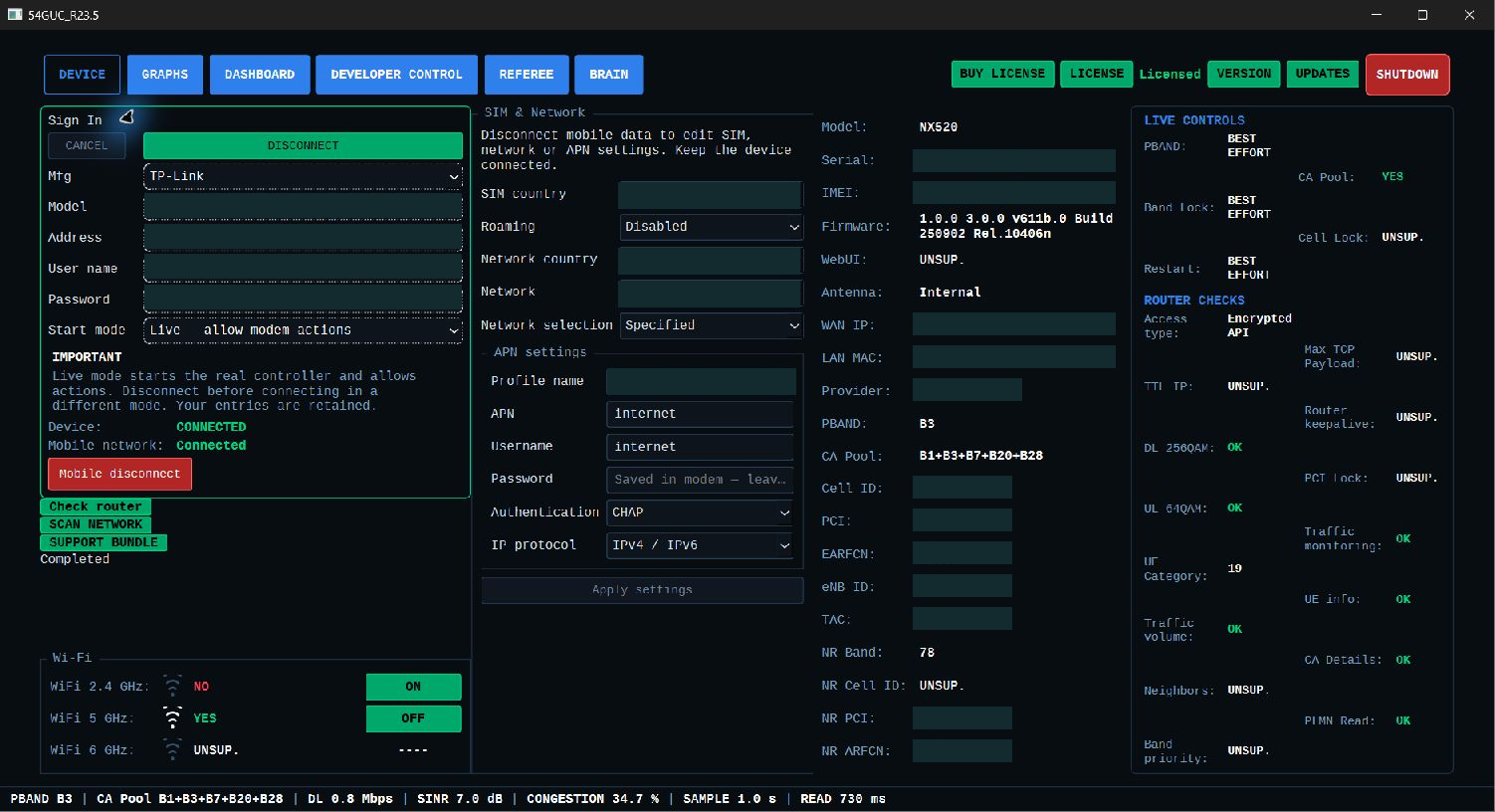 Open full-size screenshot ↗
Start here when connecting a router or checking its capabilities.
Shown on one router and firmware. Other models can provide different readings and controls. NR means 5G. UNSUP. means the selected router profile does not provide that item; ---- means the app does not currently have a valid reading.
© 2026 54GUC. Third-party components, licences and notices.
GETTING STARTED
You can currently get the app and a router licence at no charge.
R25.7 · Windows portable ZIP · 92.1 MB · hosted on GitHub. No account or email is needed to download.
cc2d28727e2aca793bd745c7d88524006b9337008cde6a97bcb128af14e07ac3Check the model and firmware in the app’s profile list. A similar model name does not establish compatibility.
You can use the monitoring pages with Brain left off. Review the available controls before enabling automation.
R25.7ROUTER LICENCE
Copy the serial number shown on the Device page. If no serial is available, use the IMEI. Enter it in this form, save the generated code and paste the complete code, including the dash, into the app’s LICENSE window.
The licence is tied to that router. Licence generation is currently available at no charge.
Commands and automated actions can interrupt service or leave the router inaccessible. Check the exact model and firmware, back up settings and keep a way to access and recover the router independently. Measurements and automated decisions can be incomplete or incorrect. Read the use terms before using the app.
If you would like to contribute information about your router model and firmware, you can share a bundle privately. Sharing is optional, including when everything is working normally.